Both the Nintendo Switch family and Steam Deck rely on expandable storage, but they use it very differently — which means “just buy the fastest card” isn’t always the right advice. Here’s how to actually pick between a microSD card and an external or internal SSD for each device.
Nintendo Switch: microSD is really the only practical option
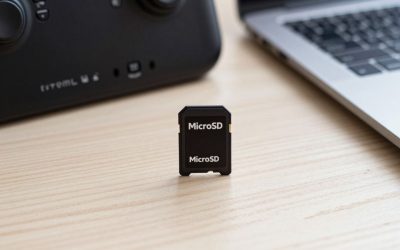
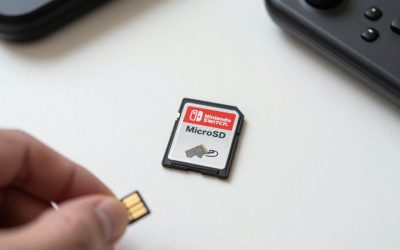
The Switch and Switch 2 use microSD cards as their sole expansion method — there’s no external SSD path built into the system. The only real decision is speed and capacity: a UHS-I card like the SanDisk microSD for Nintendo Switch is plenty fast for loading digital games and save data, since Switch cartridges and the console’s own storage architecture don’t benefit meaningfully from faster card tiers beyond a point. Buy based on capacity for your digital library size, not top-end speed ratings.
Steam Deck: microSD is for the OS-level expansion, SSD is for performance
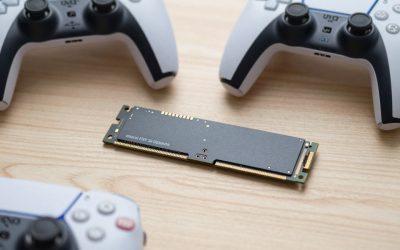
Steam Deck’s microSD slot works similarly to Switch’s — simple, swappable expansion for your Steam library — but Steam Deck also exposes an internal M.2 2230 NVMe SSD slot on most models, which is a meaningfully faster storage tier used for the base OS drive. A microSD card is the easy, no-disassembly way to add space for games; an internal NVMe upgrade (a more involved, warranty-affecting process) is for users who specifically want faster load times on their primary drive and are comfortable opening the device.
Switch 2 changes the microSD equation specifically
If you own the newer Switch 2 rather than the original Switch lineup, none of the standard UHS-I microSD cards recommended for older Switch models will work — Switch 2 requires the newer microSD Express standard, which uses the card’s PCIe lanes for meaningfully higher bandwidth. This isn’t optional backward compatibility; a regular SanDisk or Samsung UHS-I card simply won’t be recognized as expandable storage on Switch 2.
Why speed matters less than you’d think for game libraries
Load time differences between a fast microSD card and the fastest available option are often smaller in practice than marketing numbers suggest, especially for turn-based or non-twitch genres. Where speed differences become noticeable is large open-world games with frequent streaming assets — if that’s your primary use case on Steam Deck, the internal NVMe route delivers a bigger, more consistent improvement than chasing the fastest-rated microSD card.
Making the actual decision
For Switch, buy the largest capacity microSD card your budget allows from a reputable brand (SanDisk’s officially licensed line is the safe default) — there’s no SSD alternative to weigh it against. For Steam Deck, start with a microSD card for simple expansion; only consider the internal SSD swap if you’ve specifically hit load-time frustration in demanding games and are willing to do (or pay for) the internal upgrade.
Frequently Asked Questions
Can I use an external SSD with Steam Deck instead of opening it up?
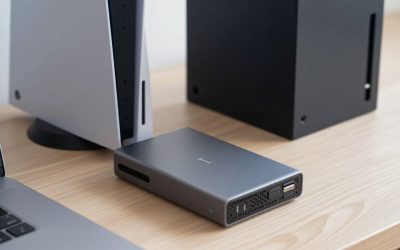
Yes, via USB-C, though it won’t match internal NVMe speeds and adds a cable/dongle to carry around — fine for extra library storage, less ideal as your primary fast drive.
Will a faster microSD card speed up Switch game loading?
Marginally at best — Switch’s game loading is bottlenecked more by the console’s own hardware than by card speed once you’re above the minimum reliable UHS-I tier.
Is it risky to install a Steam Deck’s internal NVMe SSD myself?
It’s a more involved process than swapping a microSD card — it requires opening the device, handling static-sensitive components, and can affect warranty coverage depending on how carefully it’s done. Many owners choose to have it done by a repair service rather than attempting it themselves for the first time.
Does capacity matter more than speed for most players on either device?
Generally yes — running out of space to install a game you want to play is a far more common frustration than a few seconds of extra load time, so prioritizing capacity within your budget is usually the better call for most libraries.
Budgeting for both devices if you own more than one
If you’re managing storage across both a Switch and a Steam Deck, it’s worth buying cards sized to each device’s actual needs rather than one-size-fits-all. Switch libraries tend to be smaller on average since many first-party titles are modestly sized, while Steam Deck libraries skew toward large AAA PC ports that eat space fast — plan a bigger card for the Deck specifically if your PC game library leans toward modern releases.
Is it worth buying a microSD Express card now to future-proof for a Switch 2 purchase later?
Only if you’re confident you’ll actually buy a Switch 2 soon — Express cards carry a price premium over standard UHS-I cards and offer zero benefit on an original Switch or Steam Deck in the meantime.
Does formatting a card for one device damage it for use in another?
No — reformatting is non-destructive to the card itself, though it does erase the data currently on it, so back up anything you want to keep before switching a card between devices.
Which device benefits more from a storage upgrade overall, Switch or Steam Deck?
Steam Deck arguably benefits more, simply because PC game file sizes tend to run larger than Switch titles on average — a given capacity of storage fills up noticeably faster on Steam Deck if you’re installing modern AAA PC releases.
Final Thoughts
On Switch, the choice isn’t really SSD vs microSD — it’s just microSD, so focus on capacity and reliability. On Steam Deck, microSD covers casual expansion fine, and an internal NVMe upgrade is a deliberate, more technical step reserved for players chasing real load-time gains in demanding games.
Write Your Review
No reviews yet. Be the first to share your experience!