Both PS5 and Xbox Series X|S have built-in clip recording and sharing baked into the system software, free, with no extra hardware required. So before spending anything on a dedicated capture card, it’s worth being honest about whether you actually need one, or whether the built-in tools already cover what you’re trying to do.
What built-in console recording handles well
Both consoles can capture recent gameplay automatically in the background, save manual clips and screenshots, and share them directly to social platforms or a connected phone app in a couple of button presses. For casual clip-sharing — a cool kill, a funny glitch, a highlight to send to friends — this is genuinely sufficient and requires zero setup or extra spending.
Where built-in recording falls short
The built-in tools generally cap recording length, use compressed quality tuned for quick sharing rather than archival or editing quality, and don’t support simultaneous webcam overlay, custom scenes, or live streaming with real production value. If you want to actually livestream to Twitch or YouTube with your face on screen, overlays, and alerts, or you want full, uncompressed longer recordings for editing into videos, built-in tools hit a ceiling fast.
When a capture card earns its cost
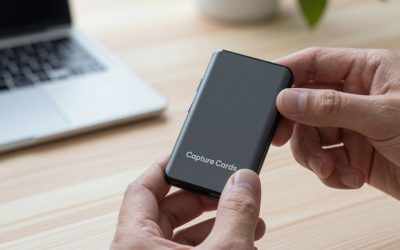
An entry-level external capture card like this connects your console’s HDMI output to a PC, passing video through with near-zero latency so you can watch on your TV while streaming or recording via OBS on your computer. This unlocks webcam overlays, custom streaming scenes, and higher-quality, longer recordings than console-native tools allow — the actual reason streamers buy capture cards rather than relying on the console’s own sharing features.
What about streaming straight from the console itself?
Both PS5 and Xbox support direct streaming to select platforms without any PC or capture card in the loop, but the production value is limited — minimal overlay customization, no dedicated webcam compositing beyond basic options, and less control over stream quality settings than a PC-based OBS setup provides. It’s a genuinely usable starting point for testing whether you enjoy streaming at all, before investing in a capture card setup.
When to go further: premium 4K capture
If you’re capturing in 4K60 with HDR and want passthrough at high frame rates for your own monitor while still capturing full quality, a premium 4K-capable card like this is the upgrade path — but it’s a meaningful added cost that only pays off if your output resolution and audience actually benefit from true 4K archival footage.
Frequently Asked Questions
Can I livestream using only the console’s built-in sharing tools?
Both consoles have some native broadcast/streaming functionality to select platforms, but it’s far more limited than a PC running OBS with a capture card — no custom overlays, scenes, or multi-source production.
Do I need a capture card if I only play on PC?
No — PC streaming typically captures the screen directly through software like OBS without any external hardware, since there’s no separate console output to bridge.
Does a capture card reduce the video quality of what I actually see while playing?
No — a properly configured capture card passes video through to your display at full quality and low latency; the compression happens only on the copy being recorded or streamed, not on what appears on your own screen.
Can I use a capture card with a PC I already use for gaming, or do I need a second PC?
A single gaming PC can handle both playing a PC game directly and capturing console footage simultaneously, as long as it has enough spare CPU/GPU headroom — for demanding streaming setups, a dedicated second PC removes any performance competition between gaming and encoding.
A middle-ground option: capture-and-edit without live streaming
If live streaming specifically isn’t the goal but you want better quality recordings than the console’s built-in tools provide — say, for editing into YouTube videos later — a capture card still makes sense even without ever opening OBS to go live. Recording locally through capture software at higher bitrates and longer durations than console-native tools allow is a genuine use case on its own, separate from the streaming conversation entirely.
How much PC performance headroom do I need to run a capture card well?
Modest, mid-range hardware from the last several years handles 1080p60 capture comfortably; 4K60 capture and encoding is more demanding and benefits from a more capable CPU/GPU if you’re also running OBS scenes and overlays simultaneously.
Can I capture audio separately from video with a capture card setup?
Yes — most capture workflows let you route game audio, mic audio, and music as separate tracks into OBS, which is useful for balancing levels independently or muting specific sources in post-production.
Will a capture card work with older console generations too?
Yes — HDMI-based capture cards like the HD60 X work with any HDMI video source, including older consoles, as long as the card supports the specific resolution and frame rate your source outputs.
Is there a cheaper middle step between built-in recording and a full capture card?
Some streamers start by capturing gameplay footage onto a USB drive through the console’s own tools, then editing those clips on a PC afterward — it’s slower and lower quality than live capture, but it’s a genuinely free way to test whether you’ll stick with content creation before spending on hardware.
Final Thoughts
If you’re happy sharing the occasional clip, the free built-in console tools are genuinely enough — don’t spend money solving a problem you don’t have. If you want real streaming production value, longer high-quality recordings, or you’re serious about building a channel, a capture card like the HD60 S+ (or 4K X for higher-end needs) is where the actual upgrade happens.

Write Your Review
No reviews yet. Be the first to share your experience!